BCBA workflow guide
Use this guide for adult behavior-support documentation, including DDA-focused assessment and plan preparation. The clinician supplies and reviews the clinical content. Workspace permissions, configured forms, and connected services determine which actions are available.
Start with the task
| What you need to do | Open | Guide |
|---|---|---|
| Find or update a participant; review programs | Patients | Patients and charts |
| Write an assessment as a document | Assessments | Assessment documents and PDFs |
| Record external results and attach the source report | Assessments or Adaptive Assessment Log | External assessment results |
| Build an FBA and behavior intervention plan | Adult FBA / BIP | Adult FBA and BIP |
| Send a reviewed report with a practice template | Report signatures | Signatures and BoldSign templates |
| Write session notes | SOAP Notes | Clinical notes |
A complete documentation visit
- Confirm the workspace and participant using the name, date of birth, and ID ending in Patients.
- In Assessments, choose the method that fits the work: a written document, external results with a PDF, or configured assessment items.
- Write the referral question, participant context, consent and participation information, methods, interpretation, limitations, and recommendations. Attach and open the source evidence.
- Save the draft. Resolve the review checklist before Review and lock report, then download and inspect the report PDF.
- Open Adult FBA / BIP for the same participant. Complete Context, Evidence, Hypotheses, Plan, Report, and Review. Upload the assessment PDF as evidence; the plan still needs its own clinical interpretation.
- After clinical review, use Report signatures to prepare the reviewed PDF with a compatible practice template. Check recipients, field mappings, and the prepared report before sending.
- Return to the record to check signature status and retrieve completed documents. Later corrections start an amendment so the reviewed version remains intact.
Working on desktop and iPad
The desktop layout keeps clinical navigation on the left. In iPad portrait, open Navigation from the top bar. The AI assistant entry remains in the application header. Patient details group into fewer table columns, and the chart uses a Chart section selector in the compact layout.
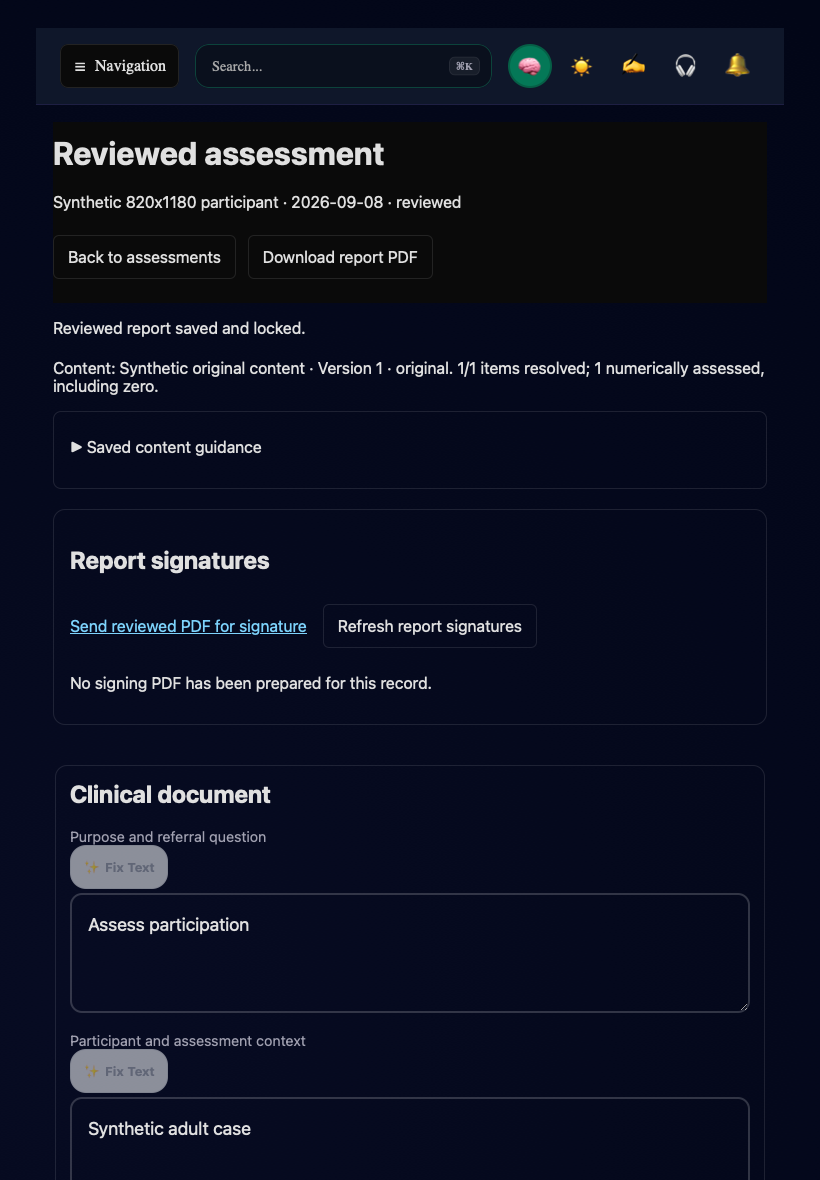
Synthetic staging record. This illustrates the controls, not a clinical assessment example or completed signing request.
Use Save draft before leaving an assessment or plan. An unsaved editor, a device-retained draft, a saved server record, and a reviewed report are different states. Read the status message and reopen saved work when confirming a handoff. For conflicts, use the offered comparison or amendment workflow instead of repeatedly submitting the same change.
Practice setup and current limits
- A practice administrator configures clinical forms and links compatible BoldSign templates. Readiness depends on the current signing connection and environment.
- Original item templates need authored items, instructions, measurement definitions, and explicit score criteria before item scoring is available. An incomplete template can still lead to a separate written assessment document.
- External results are entered as source values. Synalux does not calculate publisher norms or convert values into standardized scores.
- The signing flow appends the reviewed report to compatible template signature pages. Signatures are not placed directly onto the native report pages in this flow.
- Save and recovery messages describe the supported path. Browser storage removal, missing encryption keys, and account switching can limit recovery; keep unresolved work available and contact the practice administrator.
The public guides are currently in English. Screenshots document browser layouts; they do not establish physical-iPad or assistive-technology acceptance.