Inventory, Recipes & Vendors
Complete POS guide · Start a POS trial · Setup checklist
Inventory & Recipe Costing
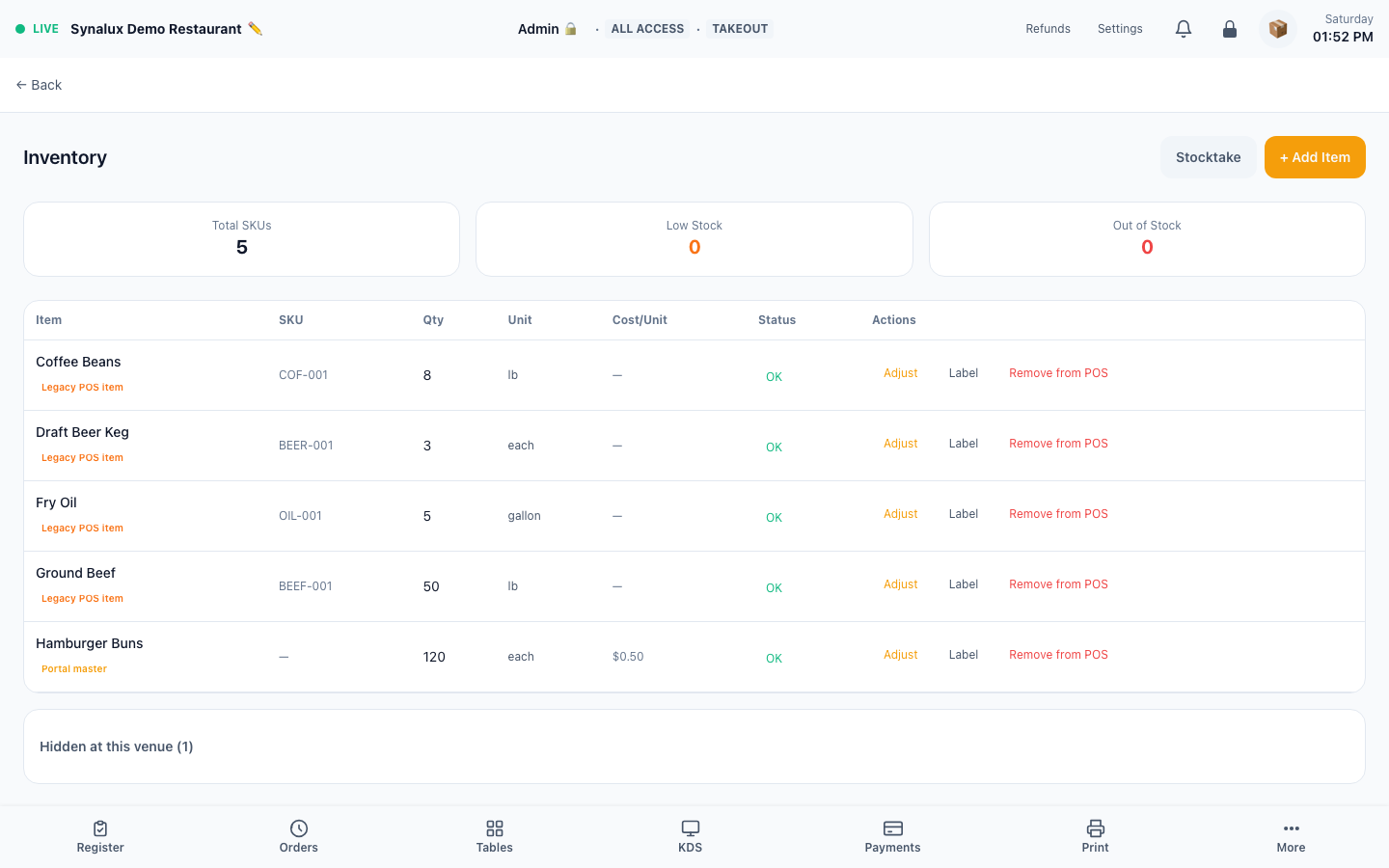
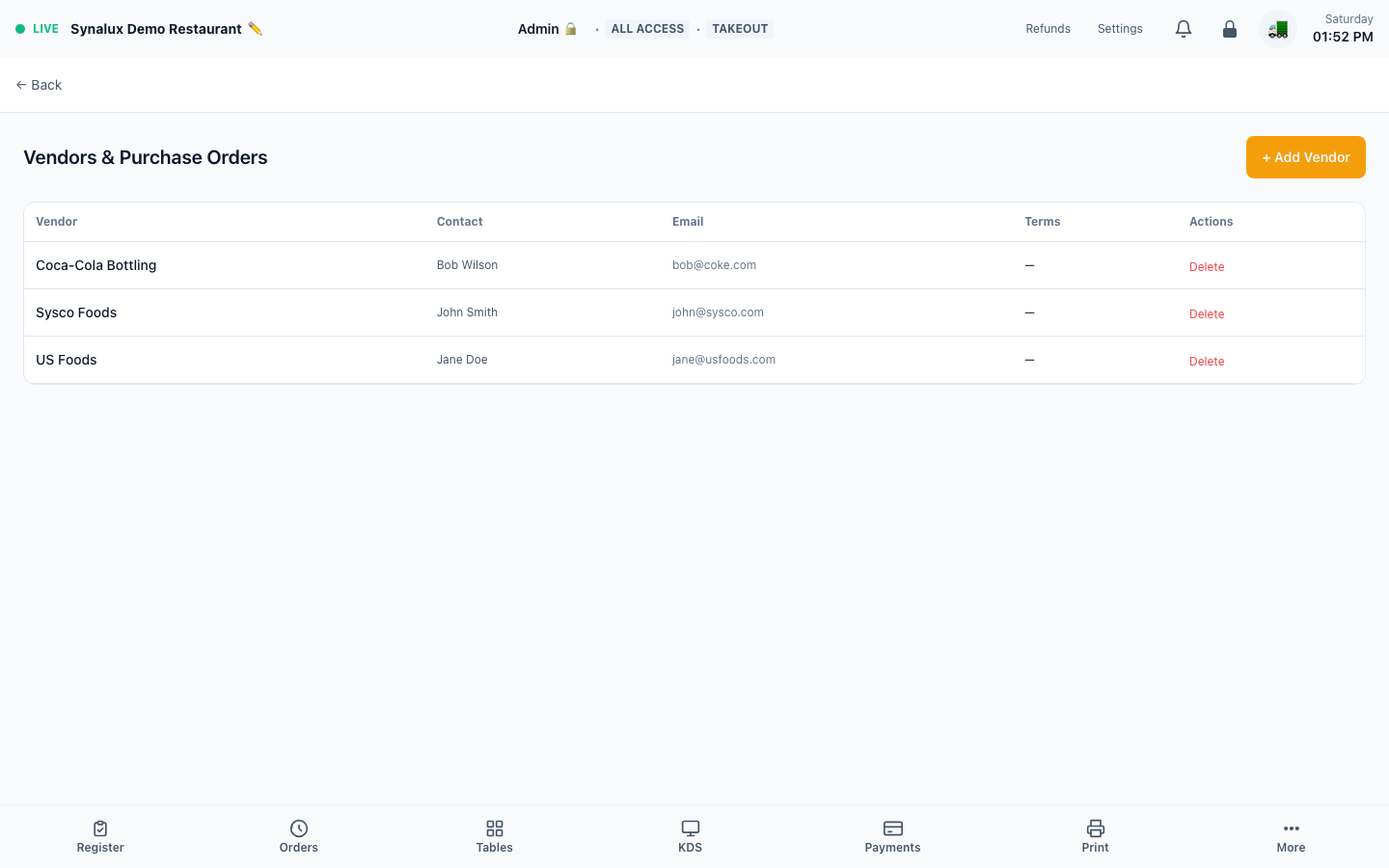
Stock tracking with protected deductions, low-stock alerts, vendor management, recipe builder with ingredient cost + profit margin %, plus reorder suggestions and purchase orders with receiving.
Setup
- Add inventory items with SKU, qty, unit, cost per unit, and low stock threshold (the reorder point)
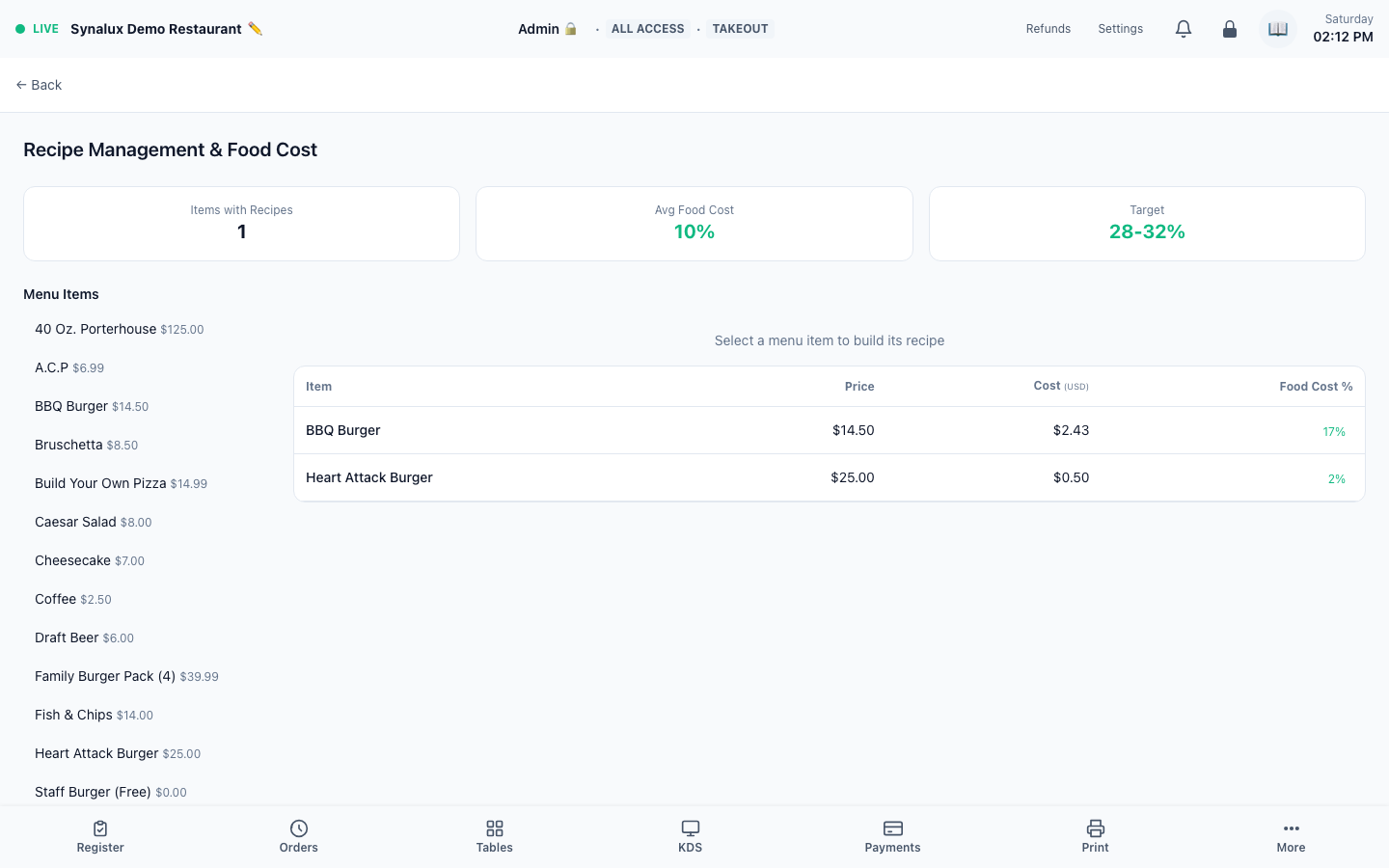
- Link recipes to menu items — ingredient cost + margin % auto-calculates
- On order completion, inventory auto-deducts per recipe and safely retries if another stock update happened at the same time
- Stock count with audit trail — records who counted, old vs new quantity
- Low-stock items trigger real-time alerts at shift clock-in
- Reorder suggestions — items at or below their reorder point are surfaced with a suggested order quantity (up to par) and estimated cost, grouped by vendor
- Purchase orders — raise a PO to a supplier straight from the suggestions (one PO per vendor); receive it to add the ordered quantities back into stock. Receiving is idempotent so a PO can't be received twice
The current demo includes a populated recipe and food-cost example:
Label Printer
Print price or SKU labels from the Inventory workspace to a configured ZPL-capable label printer. Verify the exact printer model and network path during installation.
Setup
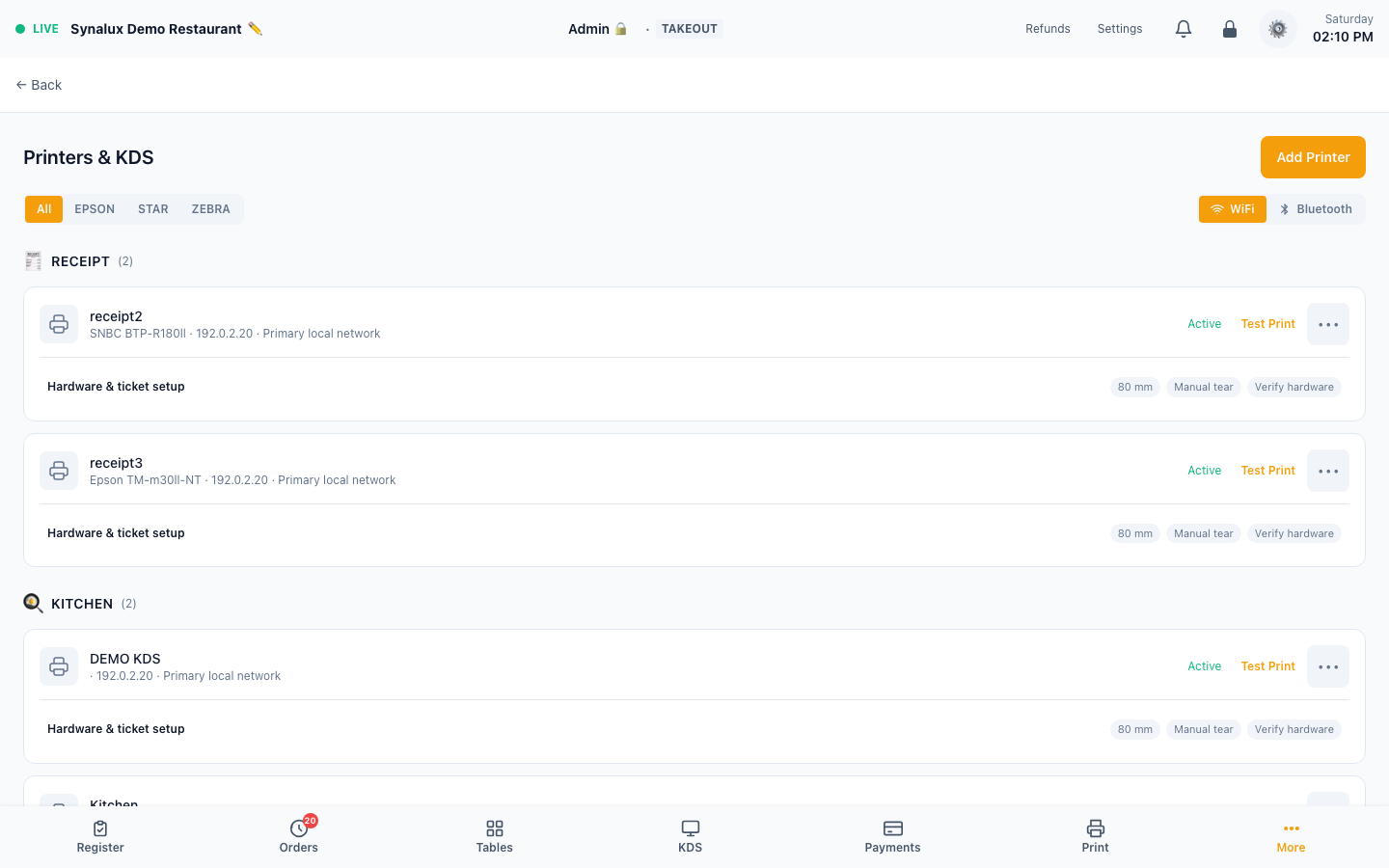
- Add a compatible label printer in Settings > Printers & KDS and assign it to the label station
- Open Inventory and select Label for an item
- A linked menu item's retail price is used for a price label; an unlinked inventory item produces an SKU label instead of exposing vendor cost as a customer price
- The generated label includes the item name and available retail-price/SKU/barcode data. Test the final ZPL layout on the exact media and printer model used by the venue
Equipment & Fixed-Asset Tracking
Operational stock remains in the POS Inventory workspace. Equipment and other depreciable purchases are tracked as fixed assets in the connected Synalux Back Office inventory, where accounting fields and depreciation belong; the POS does not present a separate warranty or maintenance registry.
Setup
- Create or edit the item in the connected Back Office Inventory workspace
- Enable Track this item as a fixed asset and enter unit cost, purchase date, useful life, salvage value, and straight-line or declining-balance depreciation
- Review fixed-asset value and monthly depreciation in Back Office; authorized accounting staff can post the monthly depreciation journal
- Maintain serial numbers, warranties, and service schedules in the venue's approved asset/service system because those are not fields in the current POS fixed-asset workflow