Register & Menu Builder
Complete POS guide · Start a POS trial · Setup checklist
Register
Ring orders in seconds. Categories, product grid, and order ticket — all on one screen. Cart auto-scrolls as items are added. Open Price button creates custom-priced items with a description field. Send to Kitchen button reappears after adding new items to a submitted order.
Customer Name / Order Reference — every order has a Customer Name field in the order panel. Type a guest name for takeout tickets, bar tabs, or dine-in. The name prints on receipts and appears on KDS tickets.
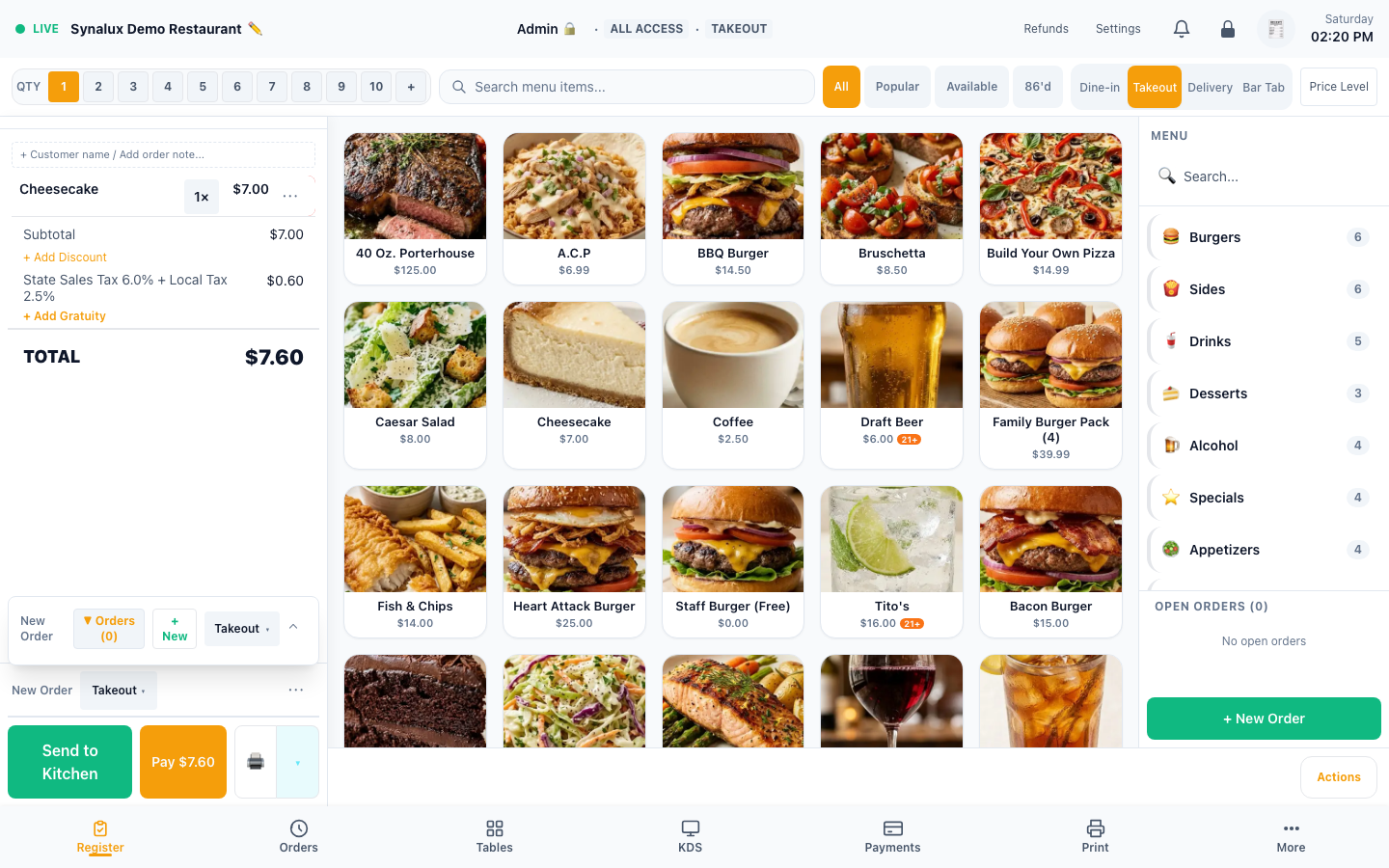
Item Search — tap the search icon on the register to search the full menu in real time (2-character minimum). Finds items across all categories instantly — no scrolling needed.
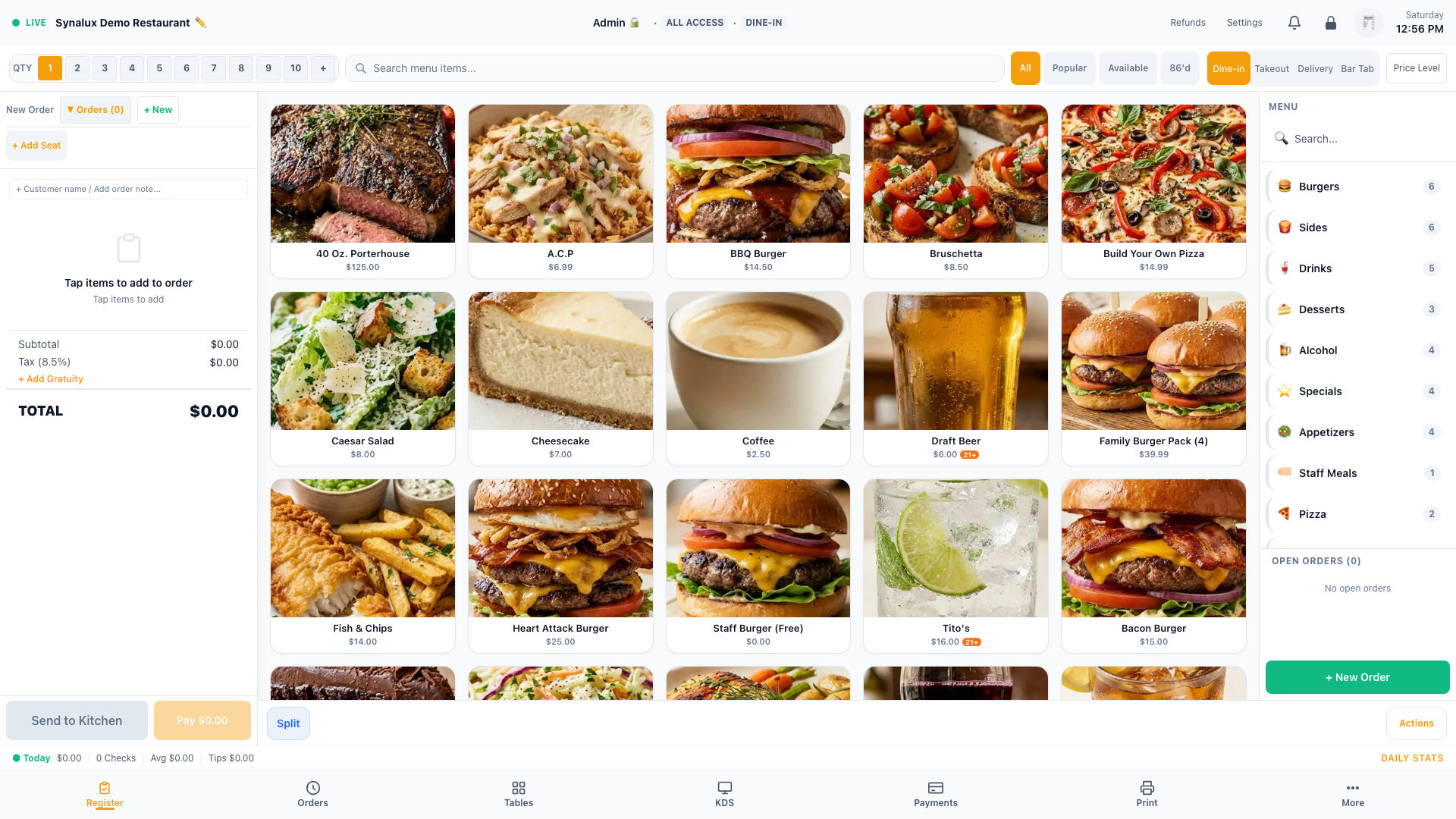
Custom order types — choose which order types appear on the register (dine-in, takeout, delivery, drive-thru, bar tab, catering) and give them custom labels (e.g. show drive-thru as "Curbside") in Settings > Venue > Order Types.
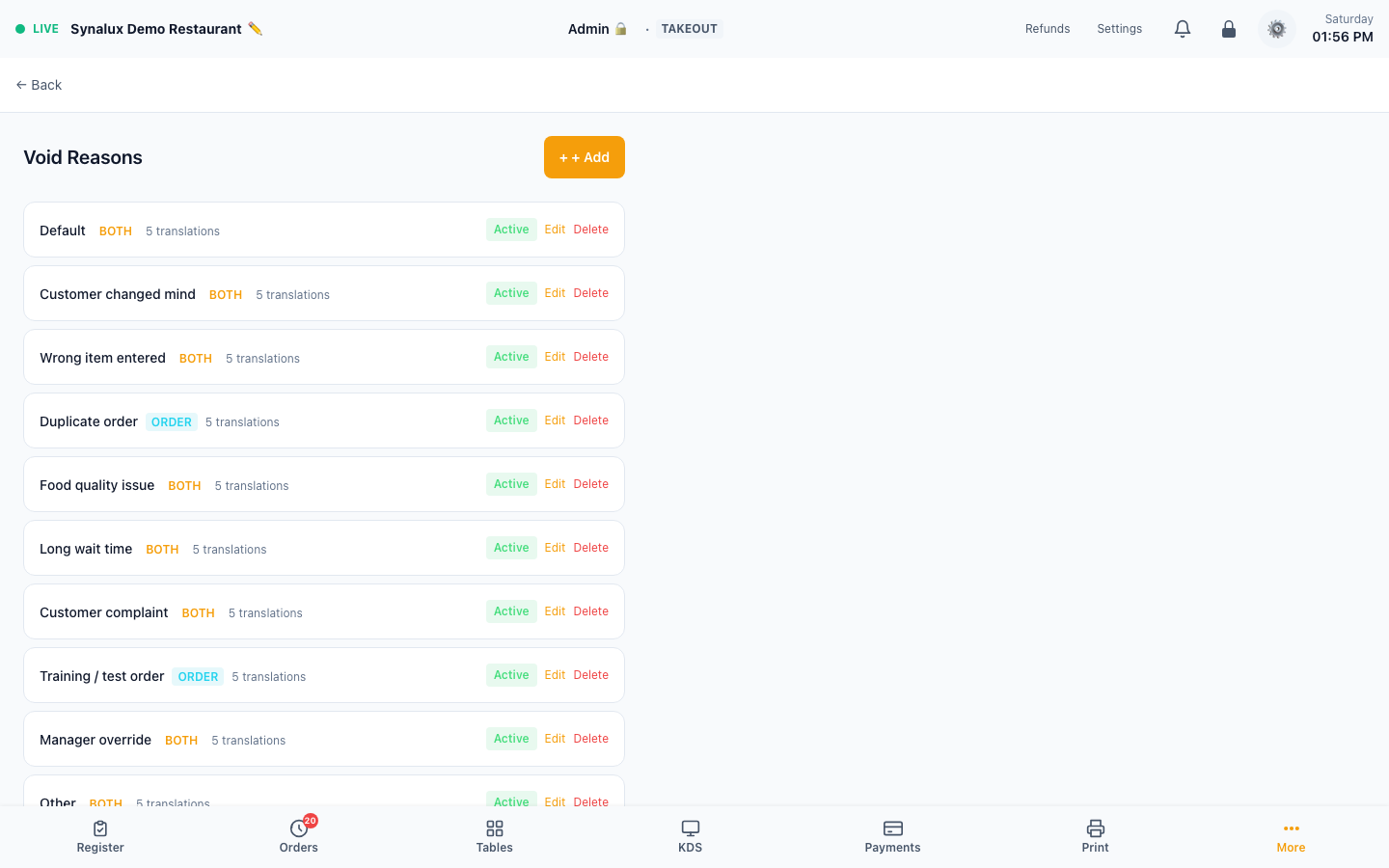
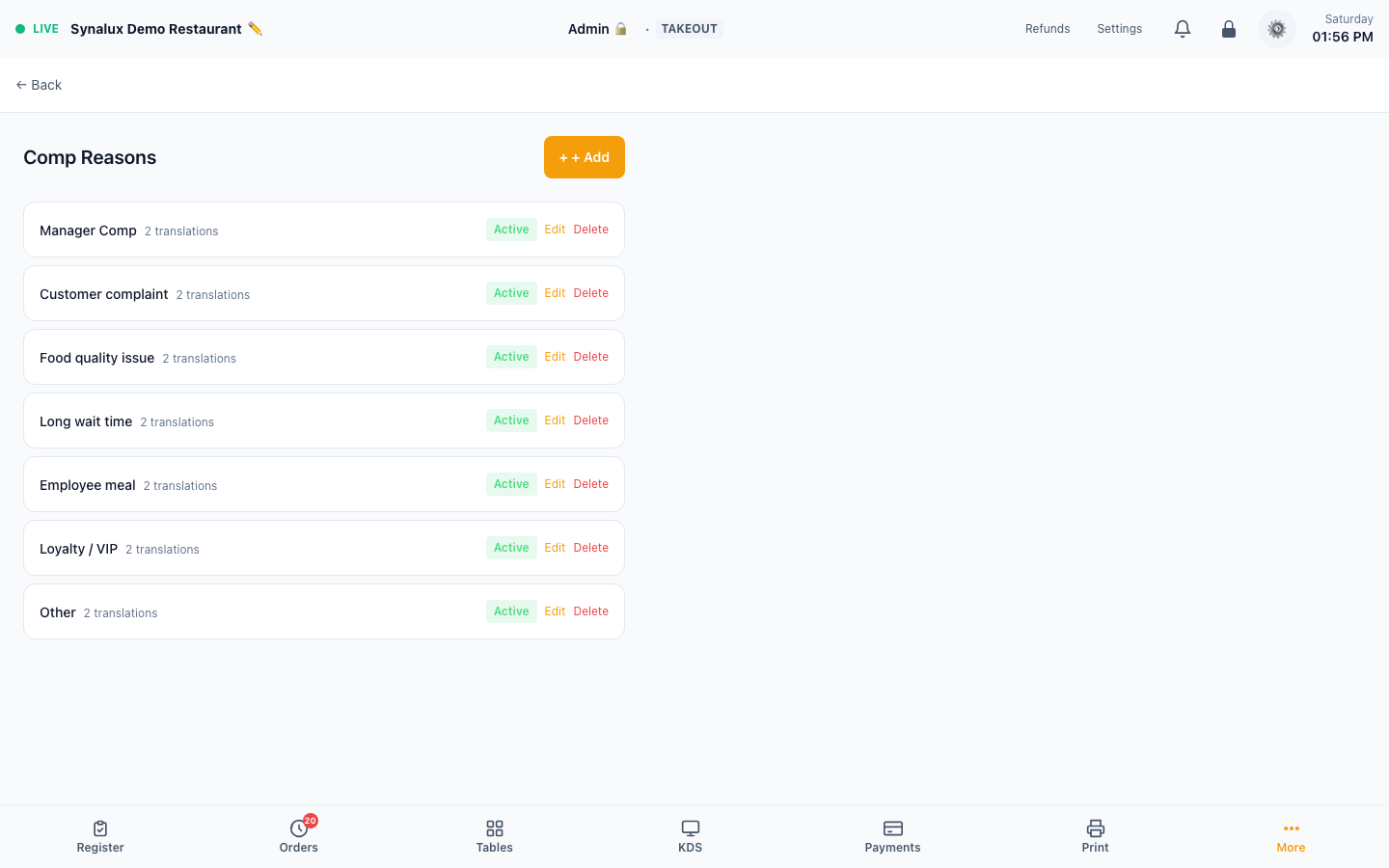
Comp an item — comp a line item with a configurable reason. Manage the reason list in Settings > Comp Reasons; when comping, staff pick a reason (or free-text) so comps are itemized by cause in the Comps report.
Setup
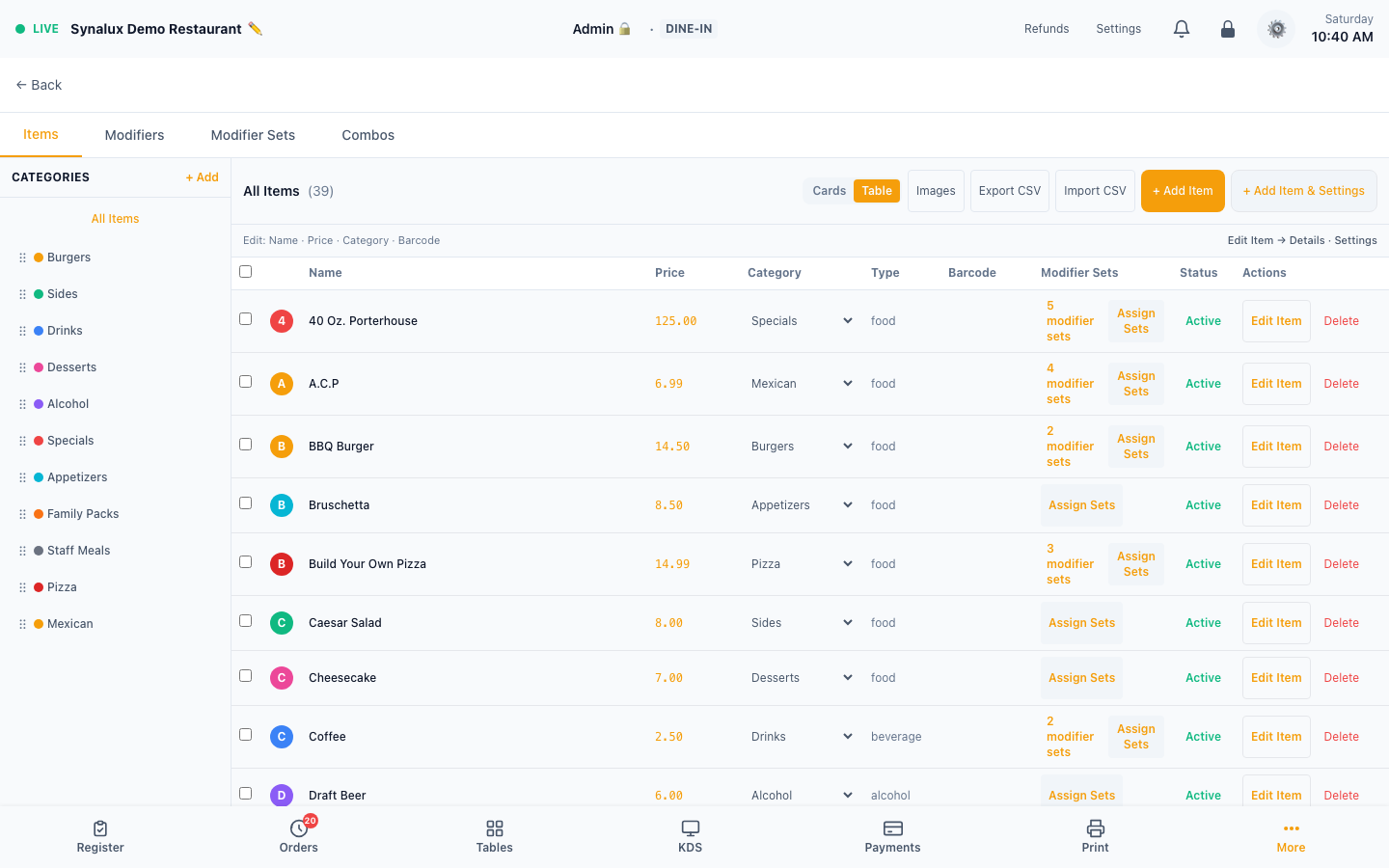
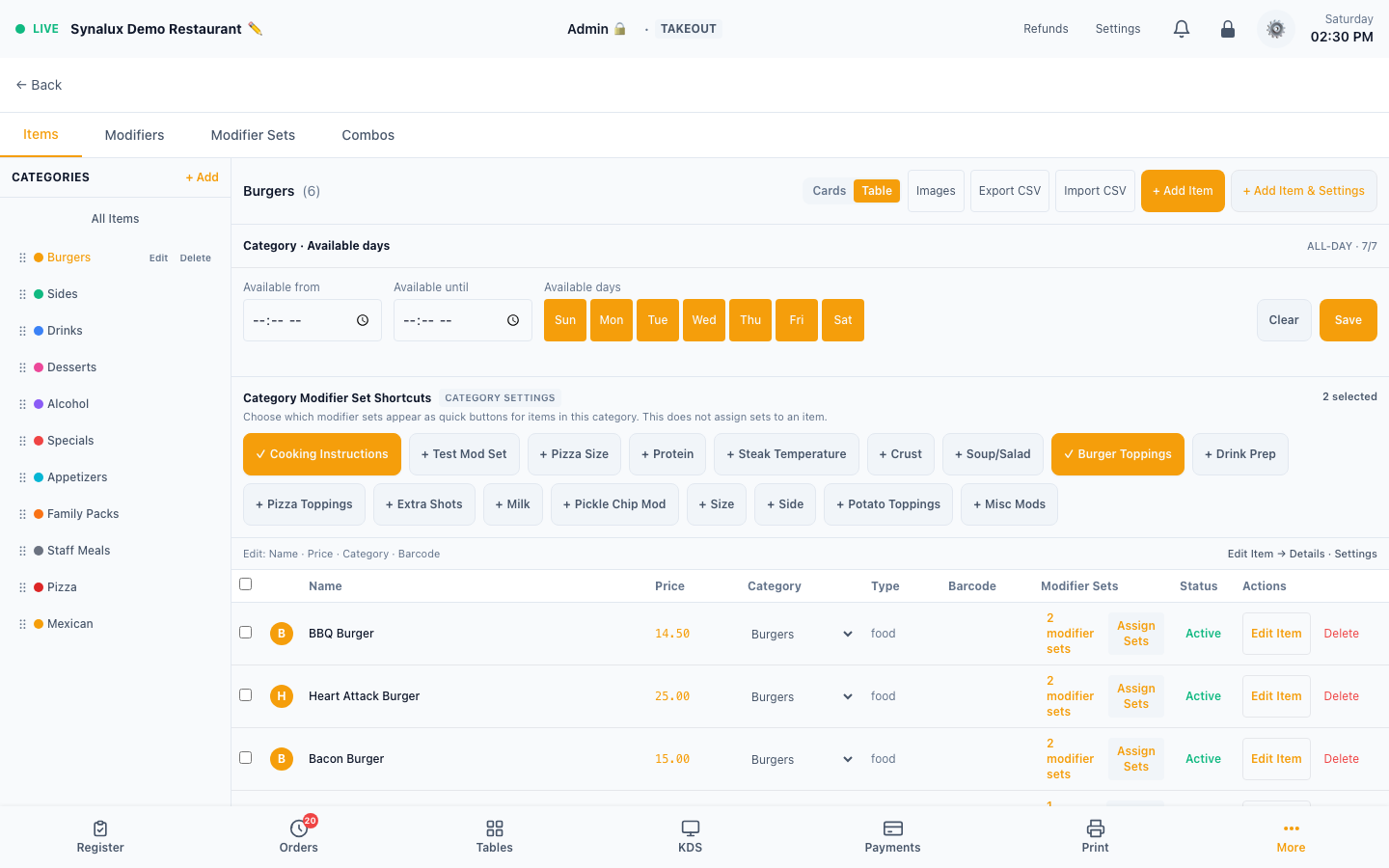
- Settings > Menu Builder > Items — add categories and items with Item Type (Food/Alcohol/Beverage/Merchandise), EBT/SNAP eligibility, and KDS Station (Grill/Fry/Prep/Expo/Bar/Cold/Pass) dropdowns
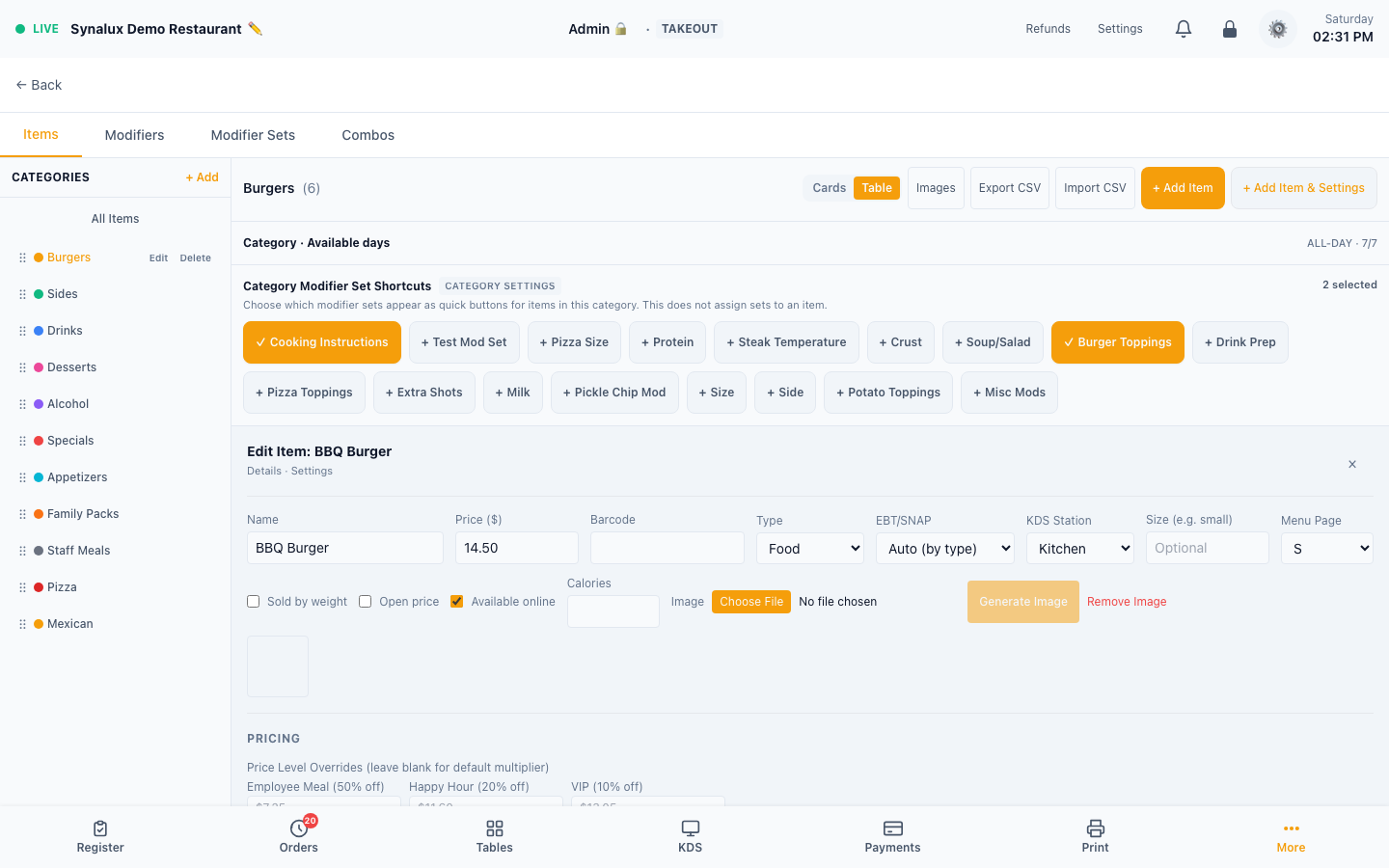
- Set prices, KDS stations, barcodes, and item details in Edit Item; use Assign Sets to attach reusable modifier sets
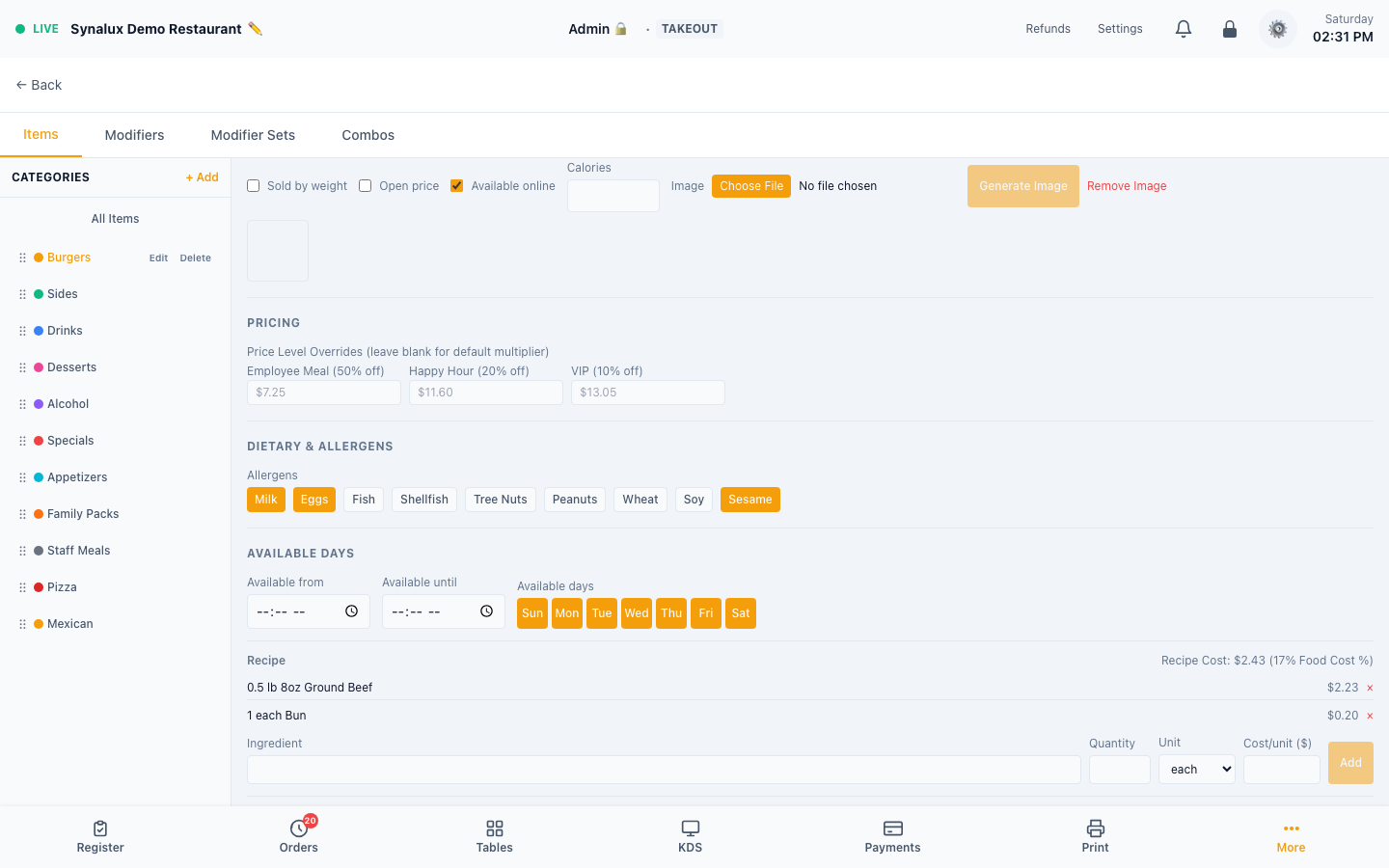
- Per-item price level overrides — set custom prices for Employee, Happy Hour, VIP levels in the item edit form. Happy-hour pricing applies to online and phone orders too — the customer is charged the same happy-hour price they see
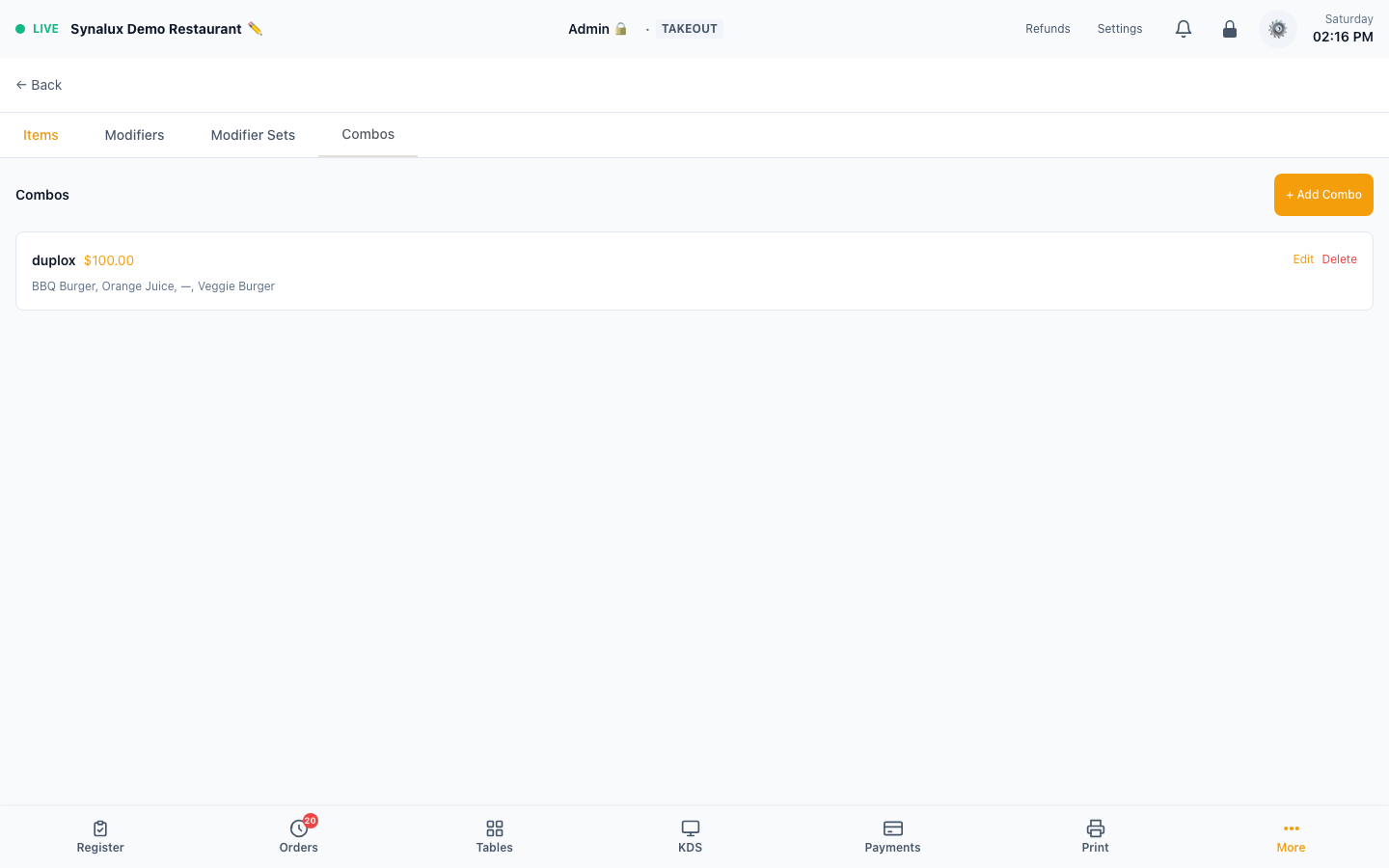
- Combos — build meal deals in the Combos tab. A component can be a specific item or a category slot ("any item from Sides"), each with its own quantity (e.g. Burger + any Side ×2 + any Drink for $10). Combo savings apply on the register and on online/phone/AI orders alike
- Category scheduling — open the category editor to set day/time availability for the whole category. The same schedule is enforced before an order is accepted or charged across the Register, public ordering, voice, WhatsApp, and other ordering channels; item-level schedules can still narrow an individual item's availability
- Items appear on the register automatically
Import & export your menu (CSV)
Settings > Menu Builder has Export CSV and Import CSV buttons. The quickest way to start is to export first — the file you get back is exactly the format import expects, so you can edit it in Excel or Google Sheets and import it again.
The first row must be a header row. Column order does not matter and header names are not case-sensitive. name and price are required; every other column is optional and may be left out entirely.
| Column | Required | What to put in it |
|---|---|---|
name |
Yes | Item name, up to 200 characters |
price |
Yes | Price in dollars, e.g. 14.50 |
category |
No | Name of an existing category, e.g. Appetizers |
type |
No | food, beverage, alcohol, or merchandise. Defaults to food |
barcode |
No | Barcode for scanning at the register |
available |
No | no marks the item unavailable. Anything else means available |
calories |
No | Whole number |
allergens |
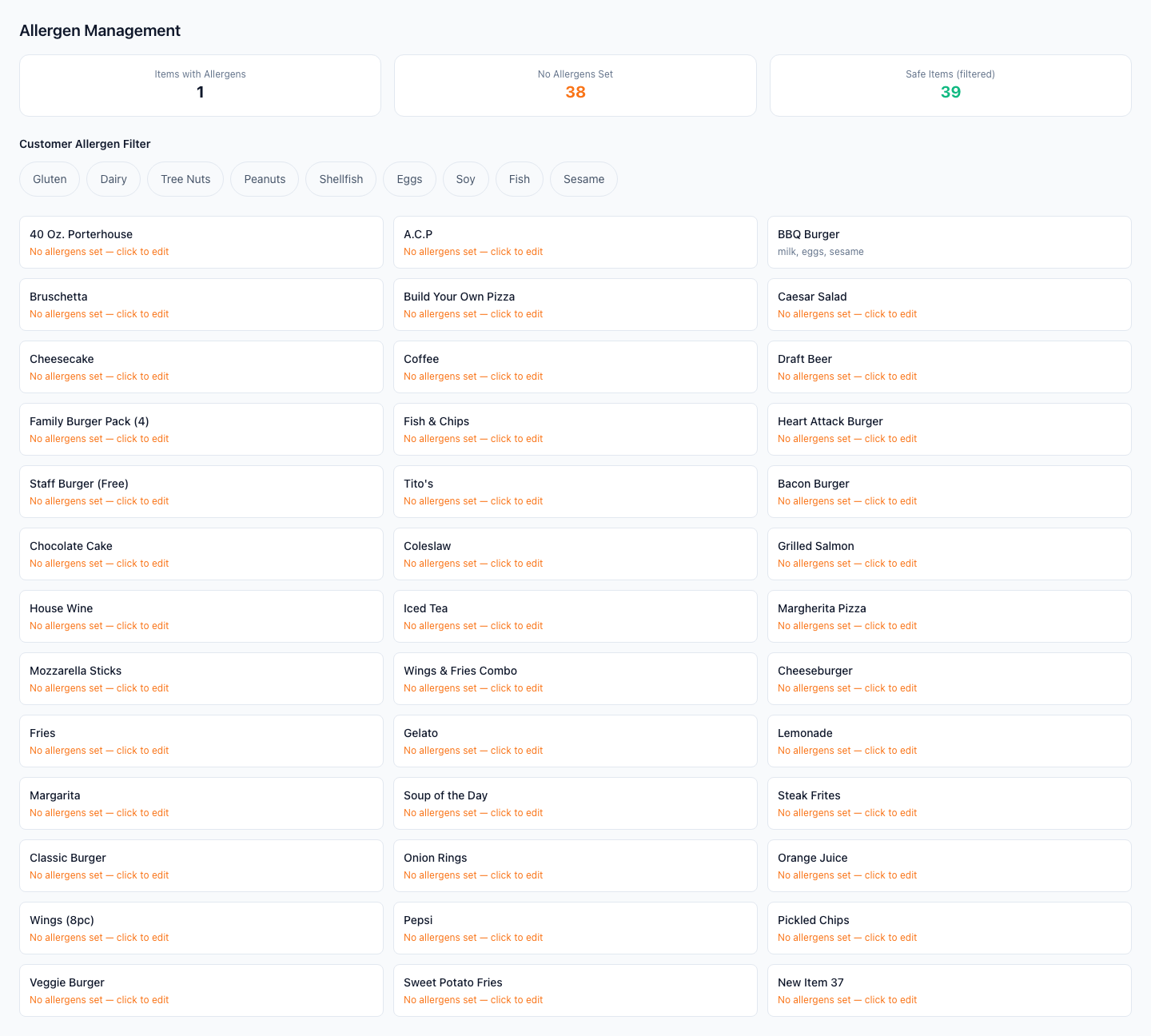
No | Separate multiple allergens with semicolons: nuts;dairy |
Example:
name,price,category,type,available,allergens
Caesar Salad,8.00,Appetizers,food,yes,dairy;gluten
House Red,11.50,Drinks,alcohol,yes,
Cheesecake,7.00,Desserts,food,no,dairy;eggs;gluten
What to expect on import:
- Import only adds new items — it never changes existing ones. If an item with the same name already exists in the same category, that row is skipped and the item is left exactly as it is. Editing a price in the CSV and re-importing will not update the item; change prices in the Menu Builder instead. The upside is that re-running the same file is always safe and never creates duplicates
- Categories are matched, never created. A category name that does not already exist is reported back in the summary and the item is imported without a category. Create your categories first
- Bad rows are skipped, not fatal. A row missing a name or with an unreadable price is counted and reported; the rest of the file still imports
- After importing, the summary tells you how many items were imported, skipped as duplicates, skipped as invalid, and how many category names went unmatched
- Up to 5,000 rows per file
- Newly imported items without photos can be filled in from the Menu Images manager — see AI Dish Image Generation
Values containing a comma, quote, or line break should be wrapped in double quotes, the same as any spreadsheet export.
Price Levels
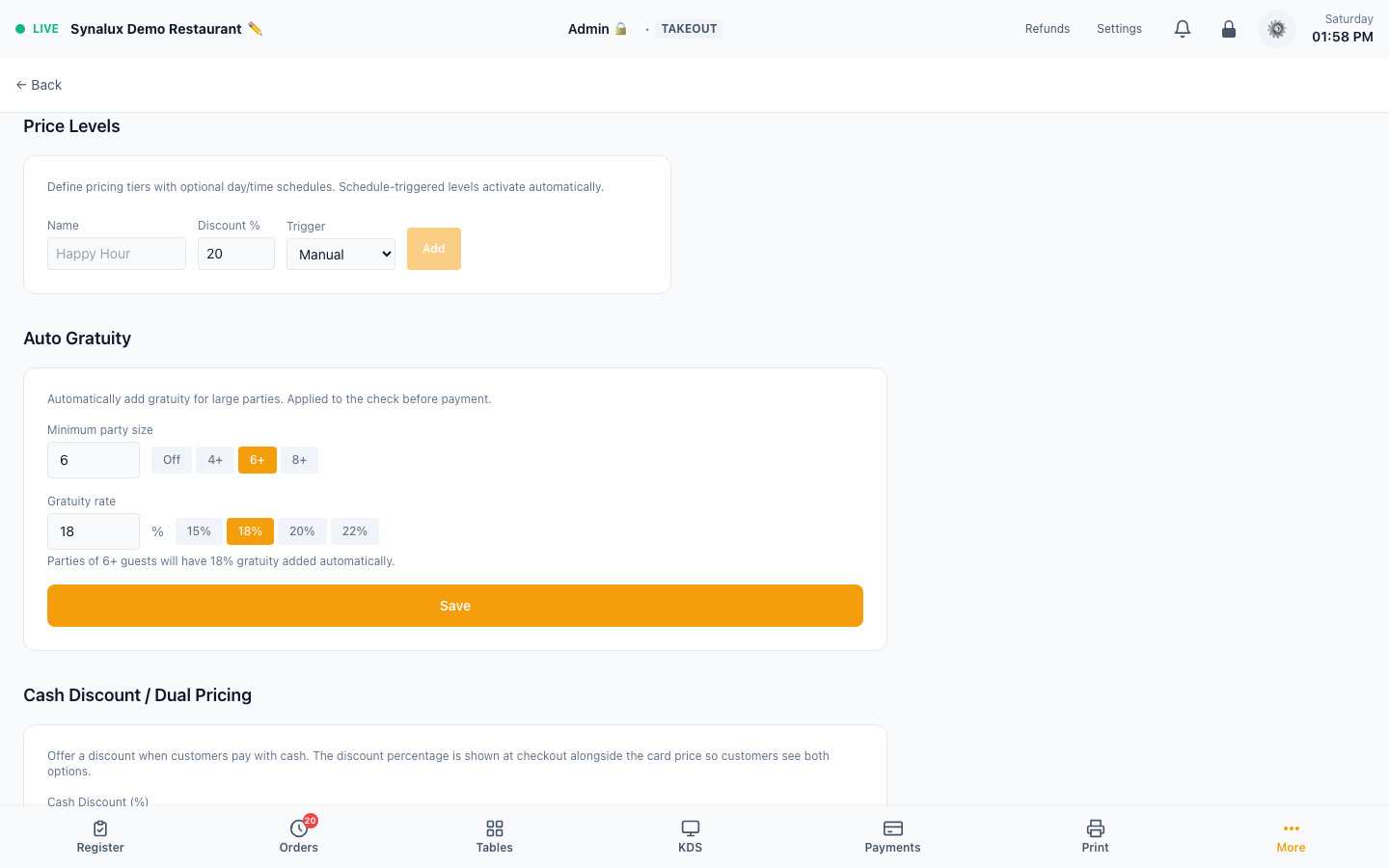
Create multiple named price levels with optional day/time scheduling. Happy hour, employee, and VIP-style pricing can use venue multipliers with per-item overrides; the current editor does not impose or advertise a 14-level product limit.
At the register. Managers and admins pick a level from the Price level button beside the order types. It offers Automatic and every level the venue allows by hand, such as Employee Meal or VIP. Scheduled levels such as Happy Hour are not offered, because they switch on by themselves.
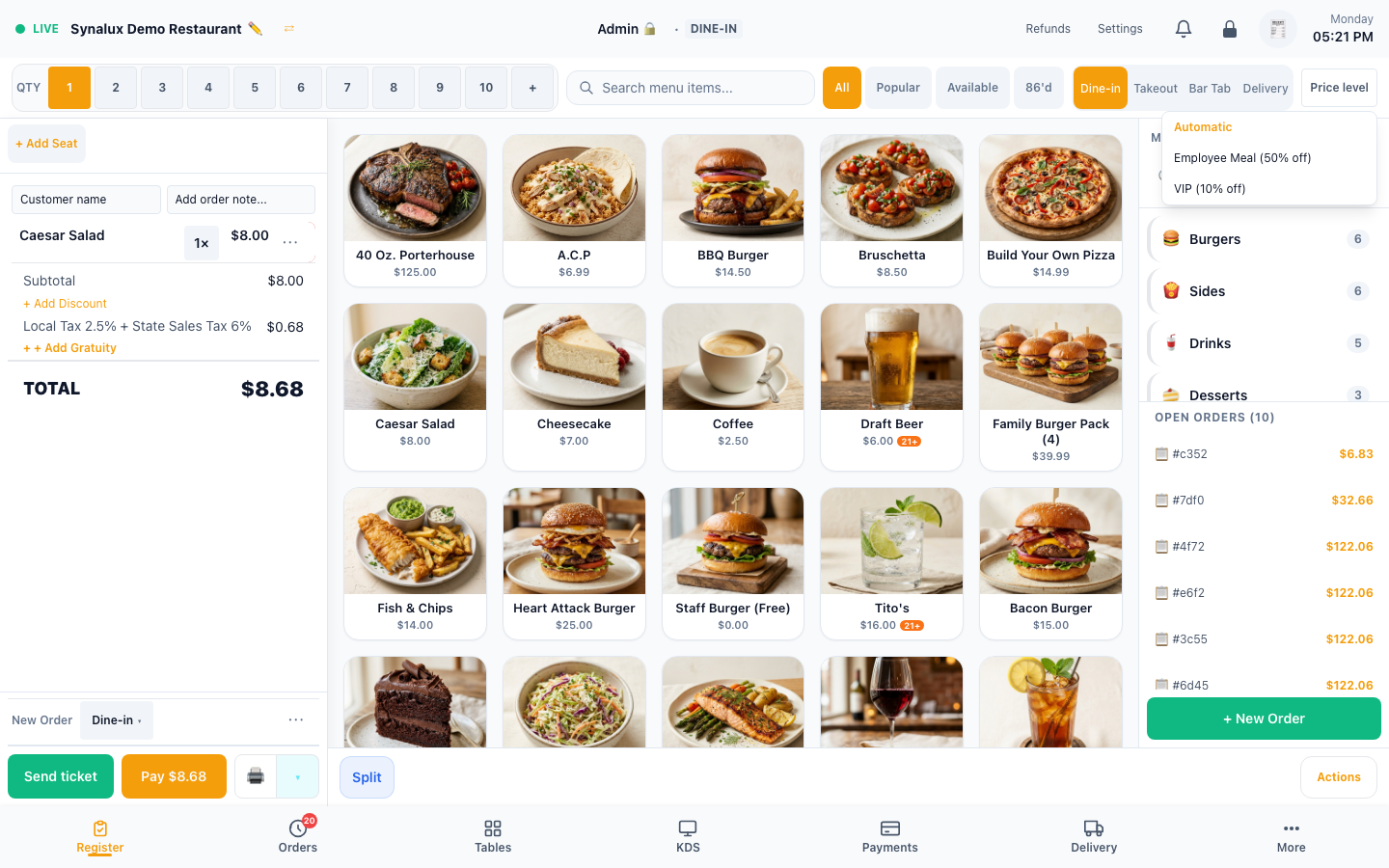
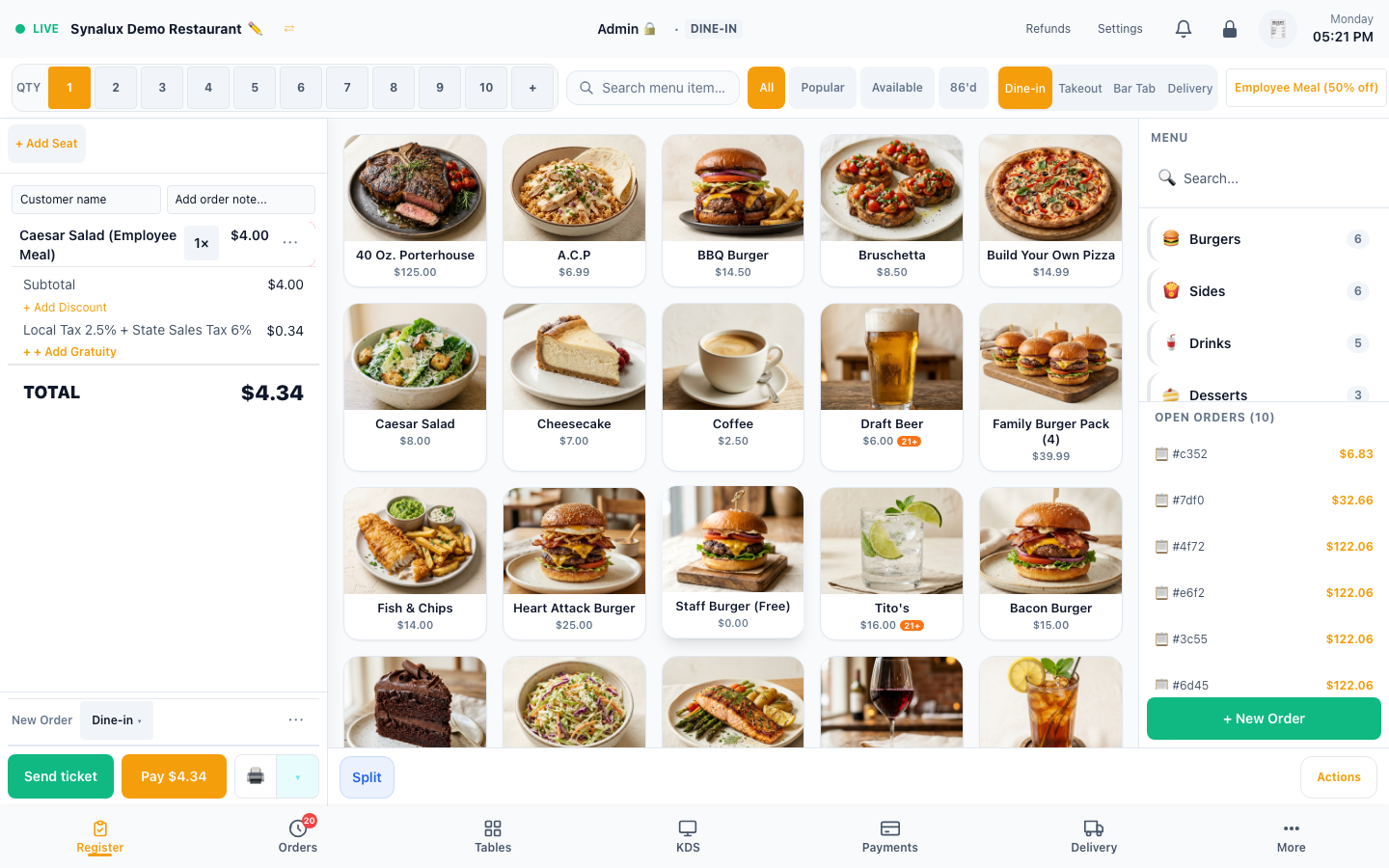
The pick reprices the items on the check that have not been sent yet, and it prices every item added afterwards, including items added to a check that is already open. Items already sent keep the price they were sent at, and so do items with a typed-in price, such as open-price or weighed items. While a level is in force, the button shows its name; tap it to change the level or go back to Automatic. The pick applies only while the manager who made it is signed in.
Setup
- Define levels in Settings > Venue Settings > Price Levels with name + multiplier
- Set Schedule for auto-switching:
{days: ["mon","tue","wed","thu","fri"], start: "16:00", end: "18:00"} - Overnight windows work:
{start: "22:00", end: "02:00"} - Per-item overrides in Menu Builder > Item > Price Levels (exact price per level)
- Price cascade: Manual pick at the register → Station price level → RC price level → Schedule → Base price
- Manual price-level override requires manager permission or higher
Pizza Builder & Modifiers
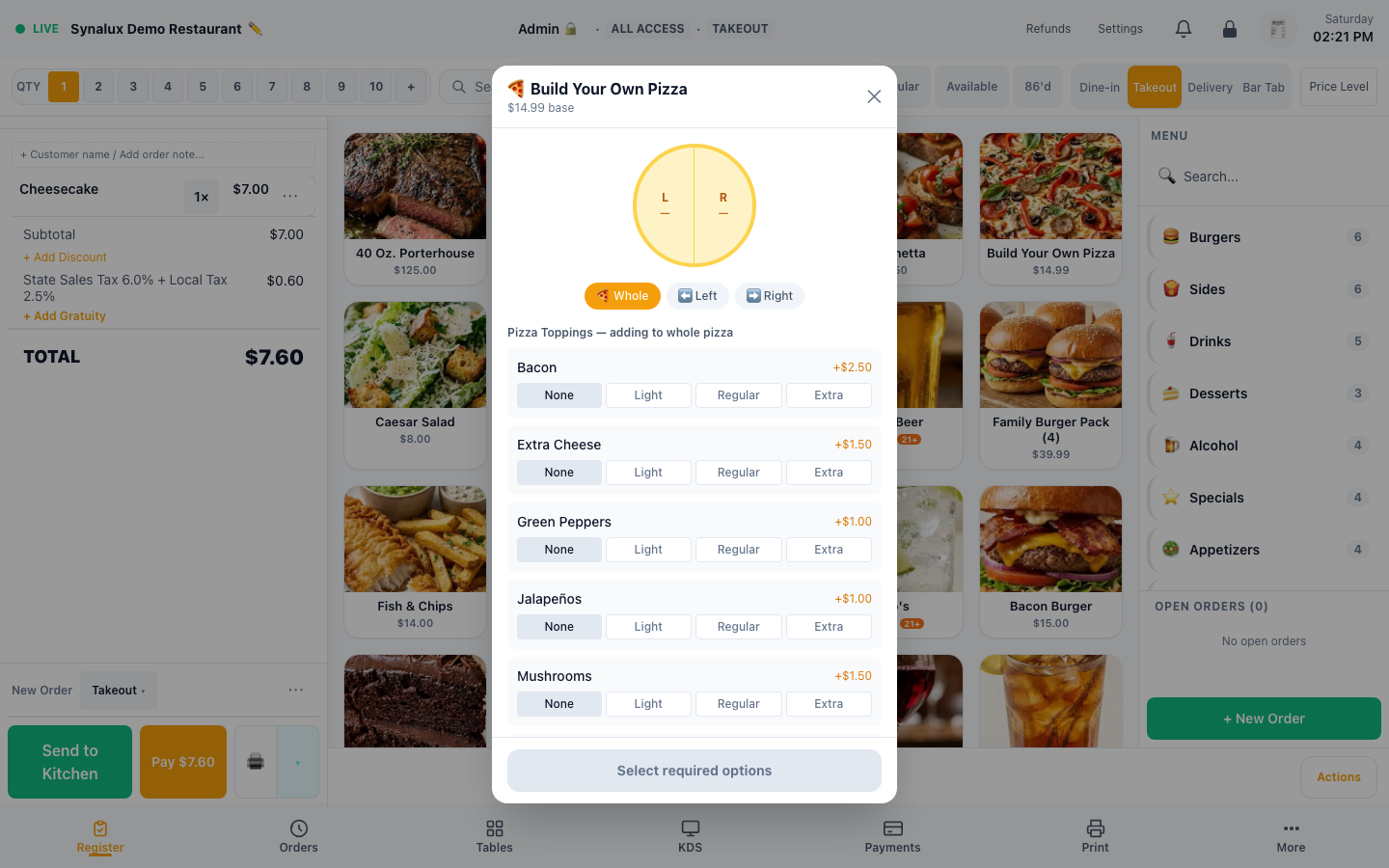
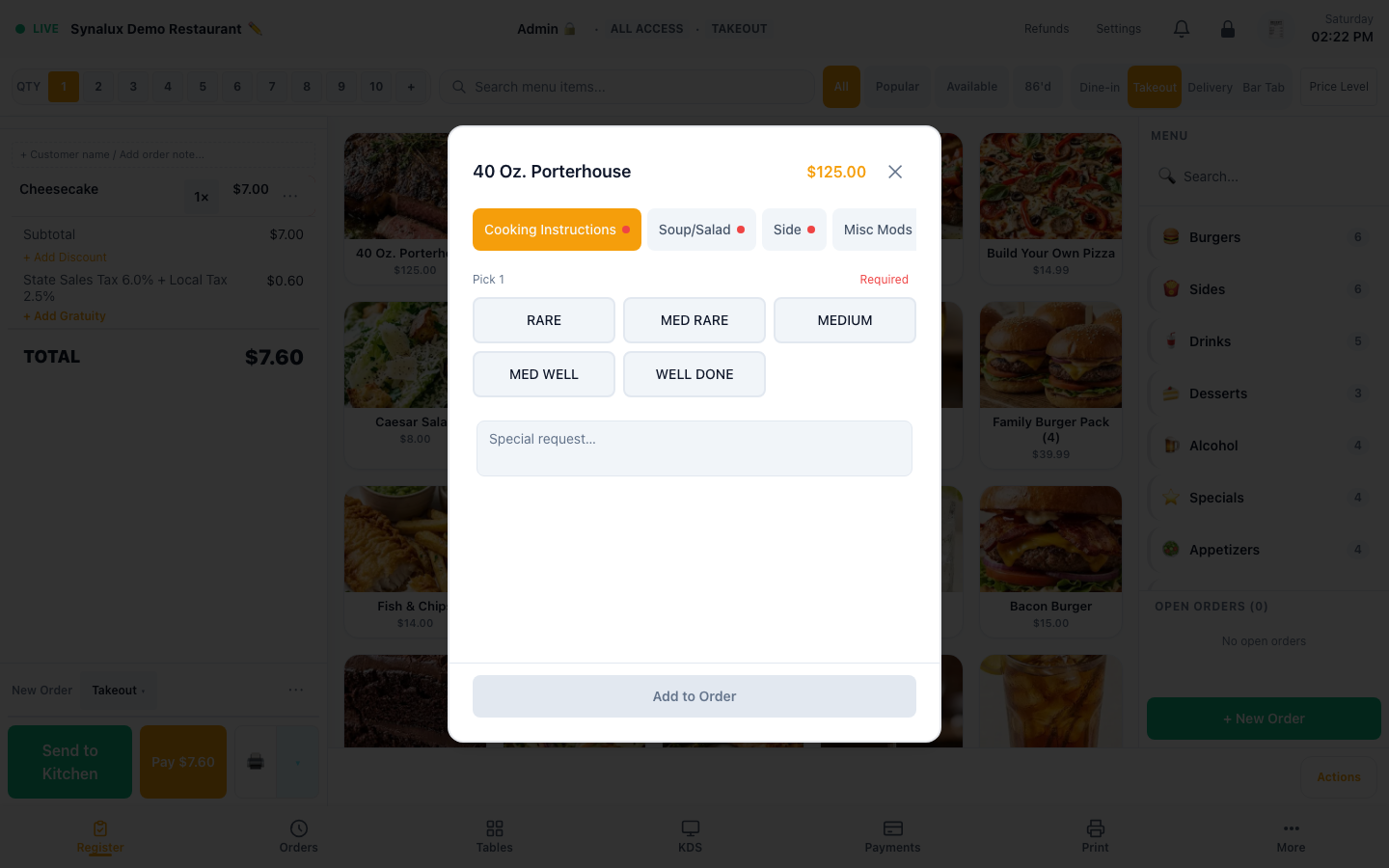
Visual half/half pizza builder with per-topping placement and intensity. Standard modifiers with qty, nested groups, forced/optional, and max-quantity limits.
Setup
- Modifier sets — create sets in Settings > Menu Builder > Modifier Sets. Set min/max selections, price deltas, and max quantity per option. Use Items on a set to tick every menu item that should offer it, instead of opening each item one at a time
- Shared modifiers — the Modifiers tab is your venue's list of modifiers, each one defined once and reused. "Ranch" is a single modifier that can belong to several sets and carry a different price in each, so renaming it or 86'ing it takes effect everywhere at once. Open a set and choose Edit to pick modifiers for it from that shared list, set each one's price for this set, and drag them into the order staff will see
- Pizza builder — set a modifier group's display mode to "🍕 Pizza Builder" in the menu builder. This triggers the visual half/half UI instead of checkboxes
- Placement — customers choose Whole, Left Half, or Right Half for each topping. Half placement = 50% of the topping price
- Intensity — None (not selected), Light (75% price), Regular (100%), Extra (150% price)
- 3PD compatibility — pizza toppings sync to DoorDash/UberEats as standard modifiers (placement/intensity are stripped since 3PD doesn't support halves). This is logged as an incompatibility
- AI chat — "Make me a half pepperoni half mushroom pizza" works without the visual builder. The AI maps to the correct modifiers and prices
- Special requests on touch terminals — tap the Special Request field to focus it and request the terminal's native touch keyboard. The same POS-wide bridge covers eligible text inputs and text areas; a hardware keyboard still works, and fields explicitly marked to opt out do not force the on-screen keyboard
Discount Engine
Auto-apply discounts, group discounts ("every 4th pizza free"), stacking rules, purchase minimums, and usage limits — all enforced by the POS.
Setup
- Auto-apply — toggle on any discount. Applied automatically when conditions met (no coupon code needed)
- Group discounts — choose the qualifying item count (for example, every fourth item) and whether the reward is free or percentage-off. The discount applies to the lowest-priced qualifying item
- Stacking — enable Exclusive to prevent combining with other discounts
- Purchase minimum — enter the minimum subtotal required before the discount applies
- Max uses — set a usage limit for a promotion. The POS prevents redemption beyond that limit
- Modifier targeting — require specific modifier selections (e.g., "large pizza with exactly 2 toppings")
- Revenue Center restrictions — limit discounts to specific RCs
- Target price — set a specific final price for promotional items
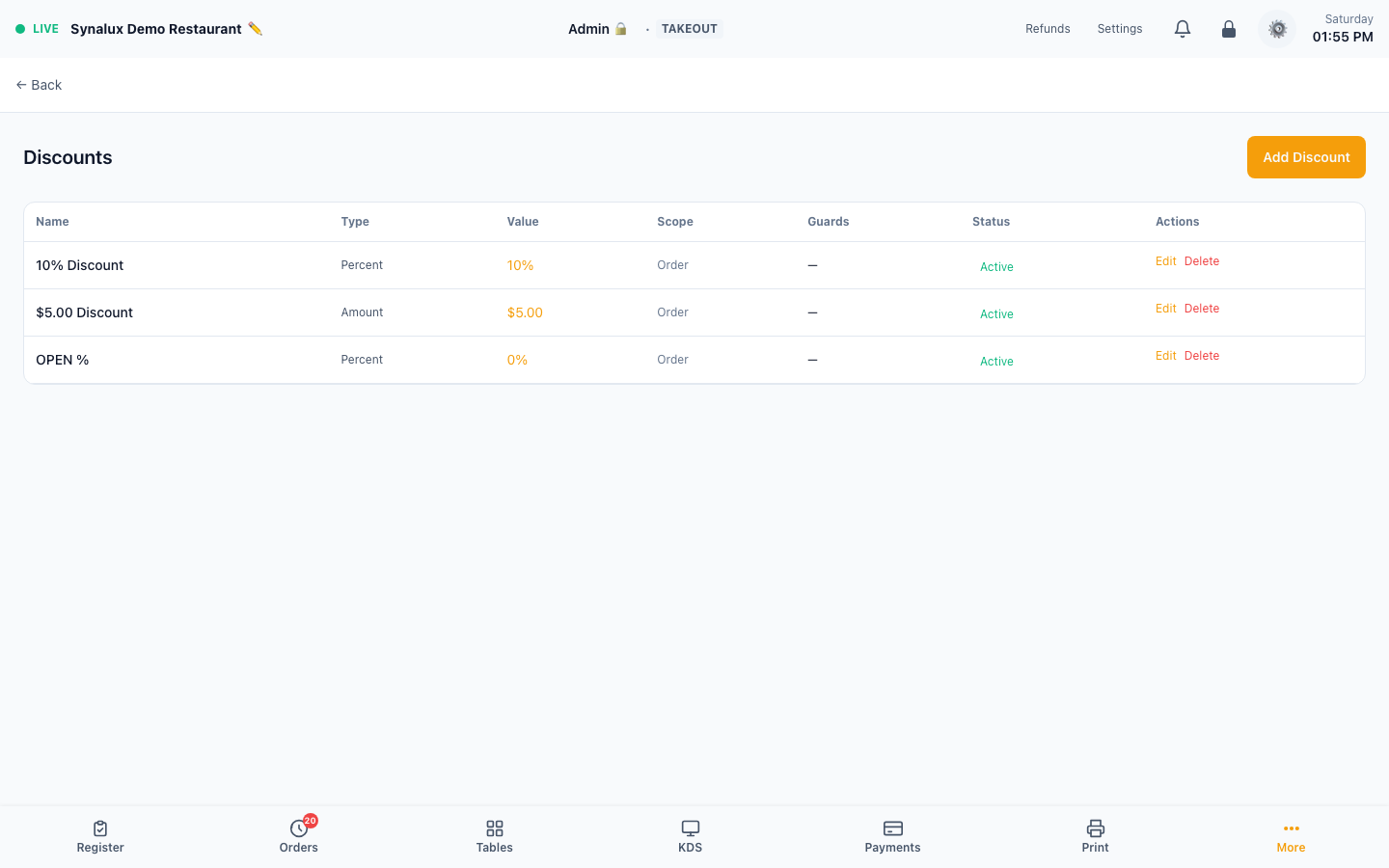
- Coupon codes — add a code to keep the discount out of the open discount list; the cashier applies it by typing or scanning the code in the Register's coupon field. Invalid, expired, and not-yet-active codes are rejected with inline feedback
| Type | Example | How it works |
|---|---|---|
| Percent | 10% off | Choose Percent and enter 10% |
| Amount | $5 off | Choose Amount and enter $5.00 |
| BOGO | Buy one, get one | Configure the qualifying quantity and free-item reward |
| Target price | Item for $5 | Choose Target price and enter $5.00 |
| Group | Every fourth item free | Choose every fourth qualifying item and the free-item reward |
AI Dish Image Generation
Menu items automatically get AI-generated dish photos — no professional photography needed. A photo is generated once per dish and cached, so the same item is never billed twice. Items show an emoji placeholder until a photo exists, and photos you upload yourself always take priority.
Setup
- Open Settings > Menu Builder. A new item generates its photo in the background — the item is sellable immediately and the picture catches up
- Generate one — an item without a photo shows a Generate image button in its editor
- Generate all missing — the Menu Images manager generates every item that lacks a photo in one batch, showing the item count and estimated cost for approval before anything runs
- Upload your own at any time to override a generated photo. Uploads are never overwritten by generation, and clearing generated images leaves your uploads untouched
- Each venue has a monthly image budget. When it is reached, generation stops rather than continuing to spend, and says so instead of failing quietly
If an item is missing its photo
Occasionally a photo cannot be produced at the moment an item is created. The item is still saved and sellable — only the picture is missing.
Opening Settings > Menu Builder retries recently added items automatically, so in most cases the photo appears on your next visit to that page with no action needed. To fix one immediately, use Generate image in the item's editor, or Generate all missing in the Menu Images manager.